























































Gemini Gems: Make Gemini Your Personal Assistant
Create and customize Gemini Gems to automate everyday tasks, improve productivity, personalize AI responses, and make Gemini your own AI assistant for work

Gemini isn't just for quick questions anymore. As one of Google's most advanced generative AI tools, people are using it to draft emails, plan their day, brainstorm ideas, get coding help, and create images. But here's the catch: every new chat starts from zero.
You re-explain your job, your preferences, and your context again and again.
Gemini Gems exist to fix exactly that. A gem is a version of Gemini you set up once, with your own instructions, and reuse whenever you need it. Think of it as building your own small assistant inside Gemini, one that already knows what you want before you ask.
What Are Gems?
Gems are customized versions of Gemini built for the tasks you do again and again. Once you set one up, Gemini remembers your goals and preferences for that task, so you don't have to repeat them in every prompt on the Gemini web app or mobile app.
How Gems Can Help You
When you build a gem with your specific goals and preferences, or pick a premade one made for a particular job, it becomes a shortcut. You skip writing out the same background every time and go straight to the question. You can build several Gems for different needs and switch between them whenever your task changes.
With Gems, you can set up instructions like:
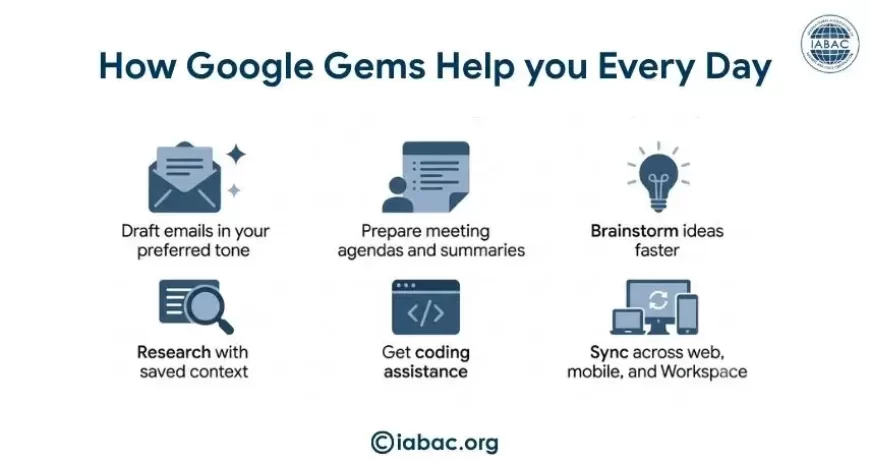
- Meeting prep: Build a gem that knows your usual meeting format and the kind of agenda you like so it can help you prep notes or summaries without re-explaining the structure each time.
- Email tone: Build a gem that knows how formal or casual you like your emails to sound, so every draft comes out in your voice instead of a generic one.
- Research focus: Build a gem that knows the topics and sources you care about, so it can help you dig into new questions in that space without you setting the context every time.
Gemini Gems vs. Custom GPTs vs. Claude Projects
All three tools take a different approach to the same idea: setting up your AI once so you don't have to repeat yourself every time.
Custom GPTs act as digital assistants. They can connect to outside tools and APIs, so they're a good fit if you want your assistant to actually take actions, not just answer questions. You can also publish one for others to use through the ChatGPT Store.
Claude Projects are built around large amounts of reference material. You can load in entire documents, style guides, or codebases, and Claude will work from all of them. consistently. This makes it a strong choice for deep research or maintaining writing quality across a big project, though sharing is limited to your team.
Gemini Gems are built for speed and simplicity within Google's own apps. Since they connect directly to Gmail, Docs, Sheets, and Drive, they're especially useful for everyday, recurring tasks that already involve your Google files, without needing to upload anything manually.
Where to Find Gems
Here's something worth flagging upfront, because it trips people up. Gemini went through an interface update recently, and the Gems section isn't as front-and-center as it used to be.
To get to it on desktop:
- Go to gemini
- Open the sidebar
- Click Gems
If this is your first time and you don't see Gems listed in the sidebar at all, go to Settings and help → Gems instead. Once you've created or used a Gem this way, it'll show up directly in your sidebar going forward.
One useful detail: a Gem you build in the web app automatically shows up in the Gemini mobile app and in the Gemini side panel inside Google Workspace too. You build it once, and it follows you across devices.
Premade Gems
Gemini comes with a set of ready-made Gems, a Storybook, a Brainstormer, a Career Guide, a Coding Partner, a Learning Coach, and a Writing Editor, covering everything from games and creative projects to coding help and career advice. So you're not starting from a blank page.
You'll find them in the Gems section in the sidebar, or under Settings and help → Gems if it's your first time there. Open the one you want under "Premade by Google," type your prompt, and submit it. Since the Gem already has instructions built in for that topic, Gemini may ask a follow-up question or two to fine-tune the response before giving you a final answer.
Customizing Gems
If a premade Gem is close to what you need but not quite there, you can copy it and adjust it instead of starting fresh.
To customize a premade Gem:
- Go to the Gems section and find the one you want to customize under "Premade by Google."
- Click "Make a copy."
- Rename the copy so you know it's yours.
- Edit the instructions to match what you actually need.
- Click Save.
Creating Your Own Gem
If a premade Gem doesn't quite cover what you need, you can build a custom one from scratch, shaped entirely around your own requests and requirements.
To create a new Gem:
- Go to gemini
- On the left, click Gems, then New Gem.
- Give it a clear name, and write instructions for it to follow (more on this below).
- Use the preview box on the right to test it with a real prompt before saving.
- Click Save. The preview window doesn't save your Gem automatically, so don't skip this step.
Writing Instructions
The better your instructions, the more useful the Gem. You're essentially telling it your goals, how you want it to behave, and the format you prefer, so it can personalize every response from there.
This works the same way good prompts do. You don't need to use all four parts every time, but using two or three already makes a real difference:
- Persona – what role should the Gem play? Tell it directly: "you are my writing editor," "you are my brainstorming partner."
- Task – what do you actually want it to do? Be specific about the action, not just the topic.
- Context – background details that shape the answer. Your preferences, your constraints, things you don't want repeated.
- Format – how you want the response structured. Bullet points, short paragraphs, numbered steps, whatever fits how you read.
Let Gemini Write the Instructions for You
If you're not sure how to phrase your instructions, you don't have to get it perfect on the first try. Write a sentence or two describing what you want the Gem to do, then click "Use Gemini to rewrite instructions". Gemini will expand your short description into a fuller, more usable set of instructions, which you can then review and edit before saving.
Add Files for More Context
You can also upload files so your Gem has something concrete to reference in every conversation. Under "Knowledge," click "Add files." You can upload a file directly from your device or connect one from Google Drive (this needs Keep Activity turned on and Workspace connected to Gemini; you'll be prompted to connect it if it isn't already).
Using a Gem in Chat
Once you've built or saved a Gem, using it is simple. Go to the sidebar, click Gems, and under "My Gems," select the one you want. Type your question or prompt in the text box at the bottom, and submit it like you would in any regular Gemini chat.
Managing Your Gems Over Time
A Gem isn't something you set up once and forget. A few features make it easier to keep using over time:
- Pinning: Gemini automatically surfaces your most recently used or created Gems at the top. If you have one you rely on daily, pin it so it stays there permanently instead of getting pushed down by newer ones.
- Editing: Open the Gem under "My Gems," make whatever changes you need, and submit. You can update instructions or knowledge files any time your needs shift.
- Deleting: If a Gem stops being useful, open its options menu and delete it directly.
- Sharing: You can share a gem itself or share a specific conversation you had using one. One thing worth knowing: a Gem someone shares with you doesn't show up in your own "My Gems" list until you've opened it and used it at least once.
What Gems Can't Do Yet
To set realistic expectations, a few honest limitations:
- Gems can't currently be used with Gemini Live, Gemini's voice mode. You're working in text only.
- Not every premade Gem supports every feature. The Learning Coach Gem, for example, doesn't currently support language learning specifically.
- Google can remove a Gem if its systems flag a possible Terms of Service violation, so it's worth keeping instructions within reasonable, intended use.
- Google Labs also offers experimental Gems for trying early-stage features. These are explicitly still in development, so quality and availability can vary.
None of these get in the way of using Gems as a genuine personal assistant for everyday tasks. They're just worth knowing upfront so nothing catches you off guard.
Why Learning Tools Like Gems Matters
Knowing how to use AI well is quickly becoming as basic a skill as knowing how to use a spreadsheet. Gems are a small, practical example of that. Setting one up forces you to think clearly about what you actually want, how you want it delivered, and what context matters, which is the same kind of thinking that makes you better at using any AI tool, not just Gemini.
The people who get the most out of AI at work aren't the ones with the fanciest prompts. They're the ones who've built a habit of setting up the right context once and reusing it well. Gems are a low-effort way to start building that habit.
Frequently Asked Questions
Is Gemini Gems free to use?
Yes. Gems are available as part of Gemini itself, not as a separate paid add-on. What you can do with file uploads and knowledge sources may depend on your plan.
Do I need an account to use Gems?
You need to be signed in to Gemini, and you need to be 13 or older, or the applicable age in your country, to create and use Gems on a personal account.
Can I use a Gem on my phone?
Yes. A Gem you create on desktop automatically shows up in the Gemini mobile app as well, so you can keep using it on the go without rebuilding it.
What happens if I share a Gem with a colleague?
They'll be able to open it and use it, but it won't automatically appear in their own Gem list until they've opened it and interacted with it once.
Can a Gem read my Google Drive files automatically?
It can reference files you specifically add to it, and it always pulls the latest version of those files. It doesn't browse your Drive on its own beyond what you've connected to that Gem.
Gemini Gems are a simple but powerful way to bring consistency and efficiency into how you use AI. By setting up reusable instructions once, you reduce effort in your daily tasks and get more reliable, tailored responses every time you interact with Gemini.
As AI tools become a regular part of everyday productivity, knowing how to customize and use them effectively is becoming an increasingly valuable professional skill. Building expertise through a generative AI specialist certification can help you understand the practical applications of AI, prompt design, automation, and responsible AI usage, making you better prepared to use tools like Gemini Gems confidently in real-world scenarios.